Digital Dashboards
downloadThis documentation explains each tile in the Digital Dashboard. The purpose of a Digital Dashboard is that it helps users who are involved in the campaign access all information such as the CBD, Signed SOW Document, Live Reports and any training content from a centralised location. It also allows new users coming into the campaign to quickly and easily access content for the campaign.
Summary
A Digital Dashboard is a centralised location for all the resources in a given campaign. The dashboard is split into 8 tiles:
- Campaign Setup Process
- Official Briefing Document
- Deal SOP Process
- QBR Process
- Live Inquiries
- Inquiry Details
- Live Reports
- Other Resources
Using the dashboard
Campaign Setup Process
This tile displays the Content Syndication Order Process Process Diagram for the campaign, the importance of this tile on the dashboard is that it allows you visualise and understand the status of where the Campaign Setup currently is for the campaign
Official Briefing Document
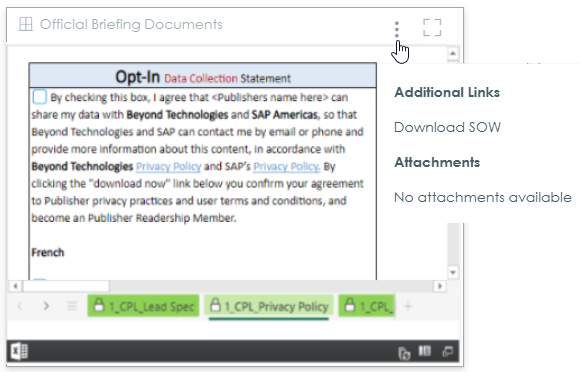
This tile displays the Campaign Briefing Document and the SOW Document. The CBD is viewed via a SharePoint Link to the document. Hovering over the elipsis (three dot menu) in the top right corner and clicking Download SOW will allow you to download the SOW for the campaign.
It is important to have these two documents in the dashboard as it provides a 'single source of truth' for the CBD and Signed SOW for a campaign.
Deal SOP Process
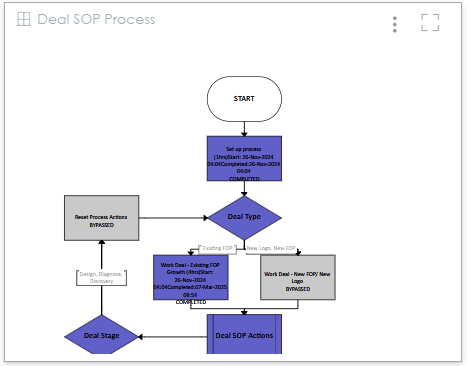
This tile displays the Deal SOP Process Diagram for the campaign, the importance of this tile on the dashboard is that it allows you visualise and understand the status of the Deal SOP for the campaign.
QBR Process
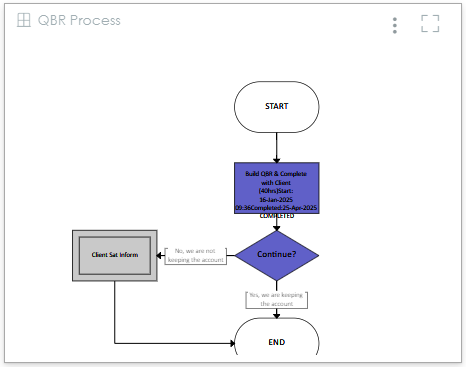
This tile displays the QBR Process Diagram for the campaign, the importance of this tile on the dashboard is that it allows you visualise and understand the status of the Quartely Review for the campaign.
Live Inquiries
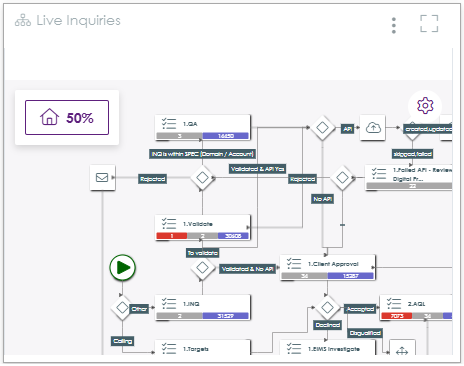
This tile displays the overview for the WBL campaign process. You can track in real time the progression of Inquiries through the process. You can interact with the overview by opening the overview in a new tab and clicking a Task to see the processes currently active.
Inquiry Details
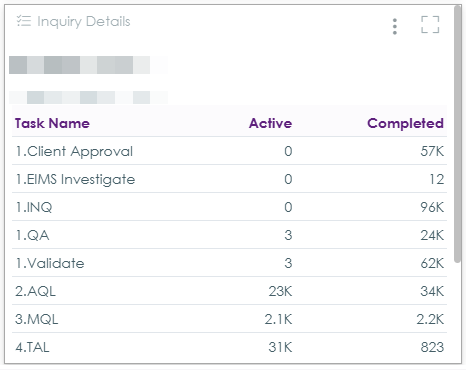
This tile shows an aggregate of processes active and completed for each Task in the Live Inquiries process.
Live Reports
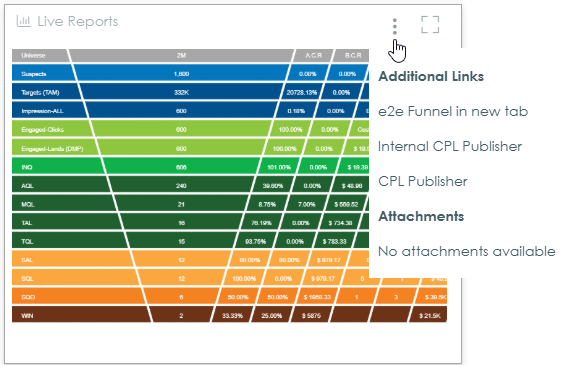
This tile displays the Campaign funnel reports which is used for the client. This is a central report by client into which all CPL campaigns data is uploaded.
Hovering over the elipsis (three dot menu) in the top right corner, there are three additional links:
- Opening the report in the tile in a new tab
- CPL Publisher report
- Internal Publisher report
The live reports tile is important to be displayed on the dashboard as it displays the campaign reports which are currently being used for the campaign.
Other Resources
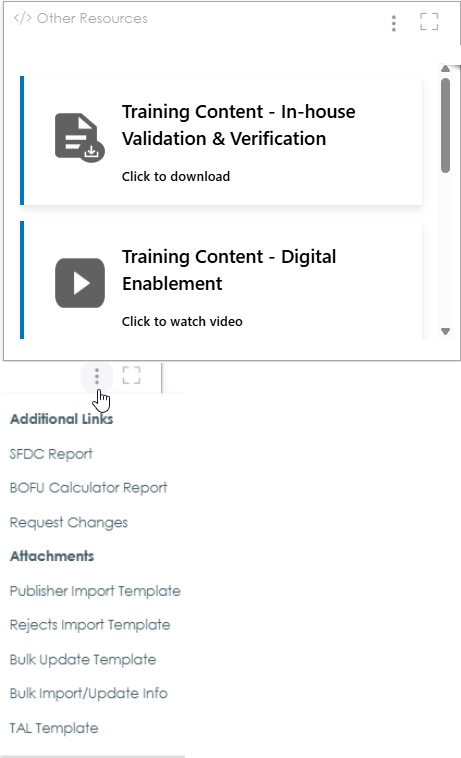
This tile displays additional resources which are relevant to all CPL campaigns such as training content. There are five default pieces of content:
- In house Validation & Verification
- Digital Enablement
- Issue Handling
- Dispute Resolution Form
- Validation and Verification rules
There are a few additional placeholders for which you can supply content which is specific to the campaign/client.
Hovering over the elipsis (three dot menu) in the top right corner you will find the following attachments and links:
- SFDC Report (Client Report) -
- BOFU Calculator Report -
- Request Changes - the process to use in order to request changes to the dashboard e.g. data schedule time, increase budget, update campaign end date, addition of publishers for configuration settings.
- The Publisher Import Template - which the publisher will use to import data into the process
- The Rejects Import Template - which EIMS resource (Media Buyers) will use to import rejected inquiries into the process
- Leads Update Template - the template to use for bulk updating inquiries so that these are in line with their journey in the client system
- Bulk Import/Update - the bulk import information for the client. Email addresses to send inquiries to the process (for publisher inquiries and also rejected inquiries).
- TAL Template - which is used for supplying new Target Accounts for the Campaign
The Other Resources tile is important to be displayed on the dashboard as it contains all the relevant information in a single place and anyone can easily familiarise themselves with this type of campaign.
Training content for CPL Campaign Dashboards
Training content for CPL Campaign Dashboards can be downloaded here